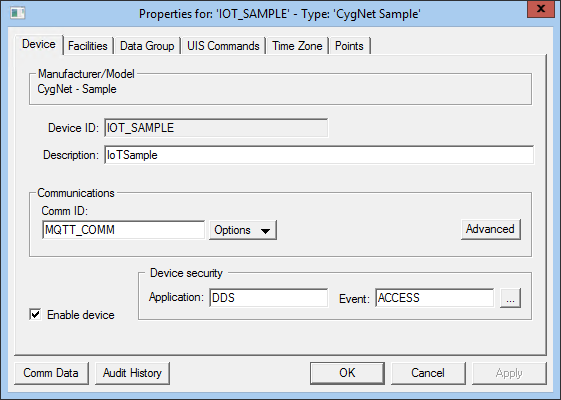
Use the Device page to view, select, and modify general device settings for a remote device. These settings are the minimum required for remote device functionality. The Device page of a remote device editor typically contains settings unique to its field device type(s) or to the EIE itself.
Click the following image to see an example Device page:
For more information, see Remote Device Editors.
The following table lists and describes specialized Device page properties for this device. See Device Page for common properties.
| Property | Description |
|---|---|
|
Device ID |
The unique identifier of an instance for this device. This free-form name must be unique in the DDS and the FAC. That is, it must be a name not used by any other communication device, import/export device, remote device, or facility. Valid characters are A-Z, 0-9, dash (-), underscore (_), and tilde (~). No spaces are allowed. 20 character maximum. Note: Tilde (~) is a valid character for both devices and facilities, but its use is not recommended. |
|
Description |
Displays a user-defined description of the remote device. A free-form description of the device. 32 character maximum. |
| Communications | |
|
Comm ID |
The name of the communication device this remote device uses. Click the Options button to select from the choices in the drop-down menu. See Communication Devices. |
|
Options |
This button provides several communications-oriented options. Options are as follows:
Note: When selecting a communication device, the only options available in the Select Communications Device dialog box are MQTT Comm devices. |
|
Advanced |
Click to access advanced communication device failover settings. |
|
Enable device |
Check to enable or disable the device. The default setting is disabled. The device will automatically disable if an invalid configuration is detected. The device can be re-enabled after the invalid configuration is fixed. |
| Device security | |
|
Application |
Defines the ACS security application name used to validate the users of this device. See Applications, Events, Permissions. |
|
Event |
Defines the ACS security event used to validate users of this device. Click … to select the security event. See Applications, Events, Permissions. |
|
Comm Data |
Enables you to open a modeless Communications Data Viewer dialog box. |
|
Audit History |
Enables you to view the audit trail for the device. |

|
|
|

